Navigate to Permit to Work
Find your way from the Permit Vision home page to the permit you need to act on, and learn how to start a new one.
Two ways to navigate
There are two ways to reach a permit; use whichever suits you — they lead to the same lists.
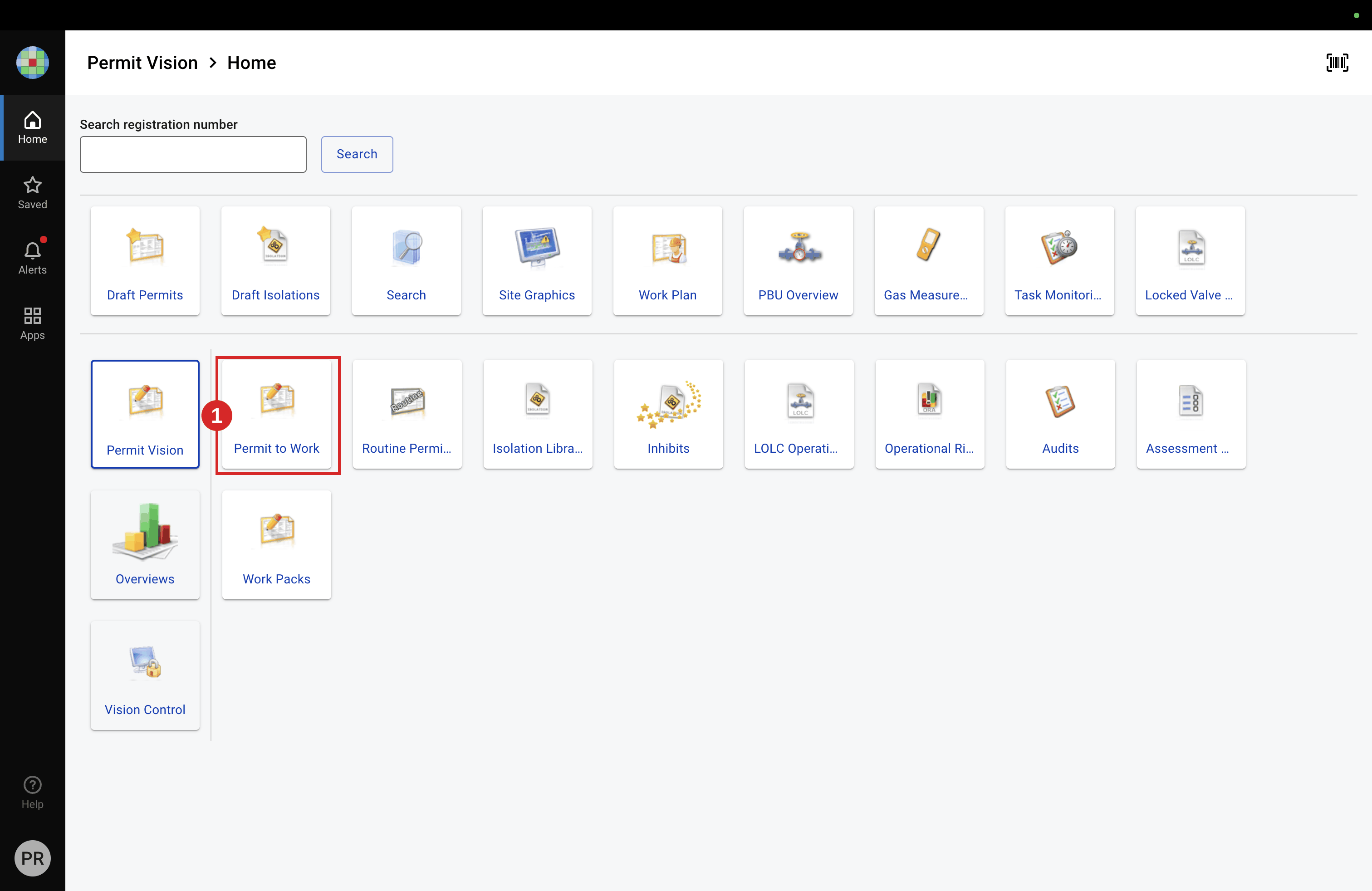
From Home (tiles). On the Permit Vision home page, open the Apps menu, then select Permit to Work. The area opens on a dashboard of tiles (worklists).
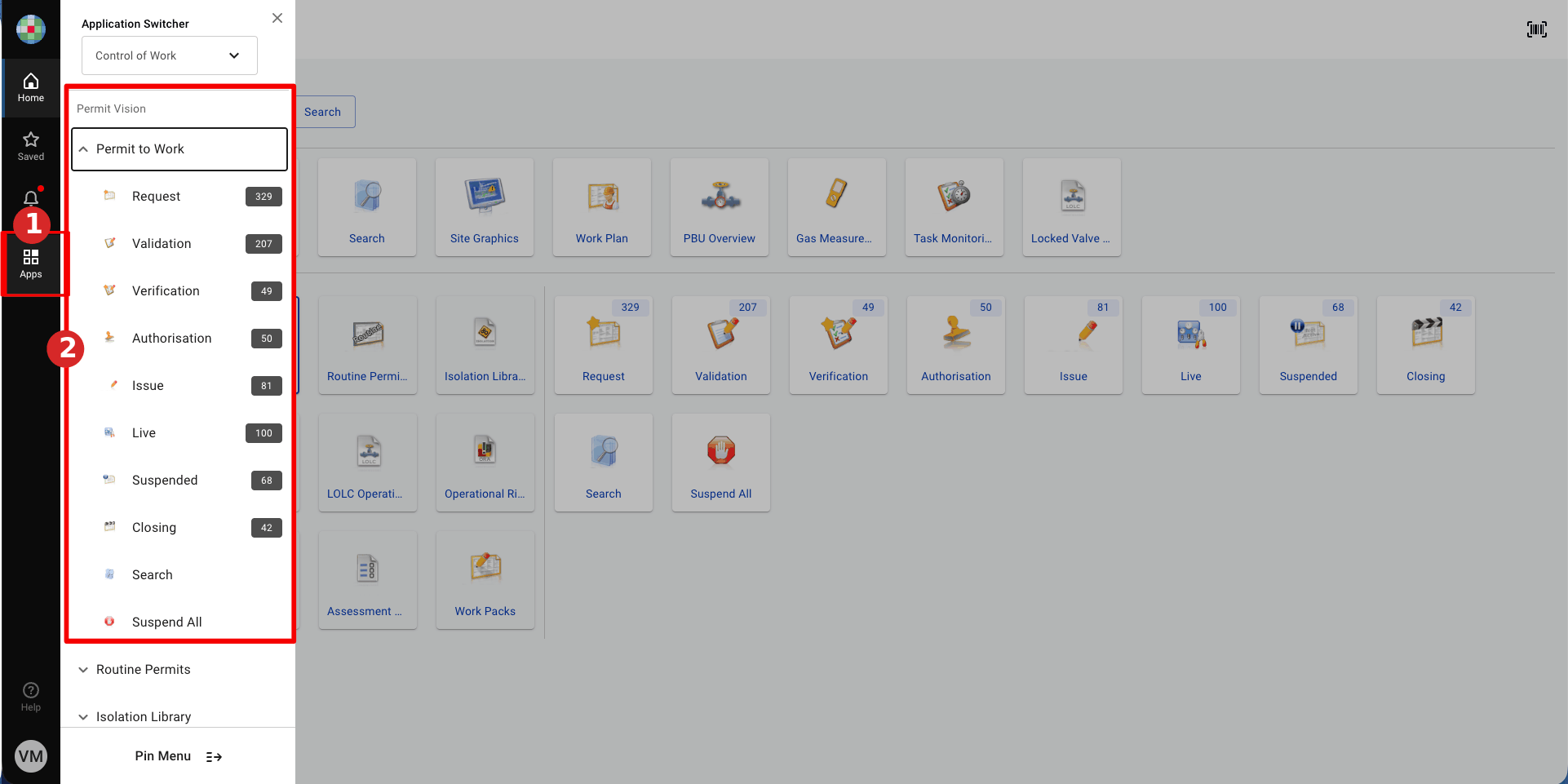
From the left-hand menu. Once you are inside a module, the Apps rail keeps the Permit to Work menu expanded so you can jump directly to any worklist — or to another module such as Isolation Library — without going back to Home. This is new in V9 and is often faster once you know the tool.
The Permit to Work tiles — and the statuses inside them
The Permit to Work area opens on a set of tiles (buttons). A tile is a folder that groups several statuses, not a single one — for example the Suspended tile holds every "suspended" status, and Live also contains Overdue and Live for Test. The number on a tile is the count of permits inside the whole group. To find a permit, click the tile that contains its status.
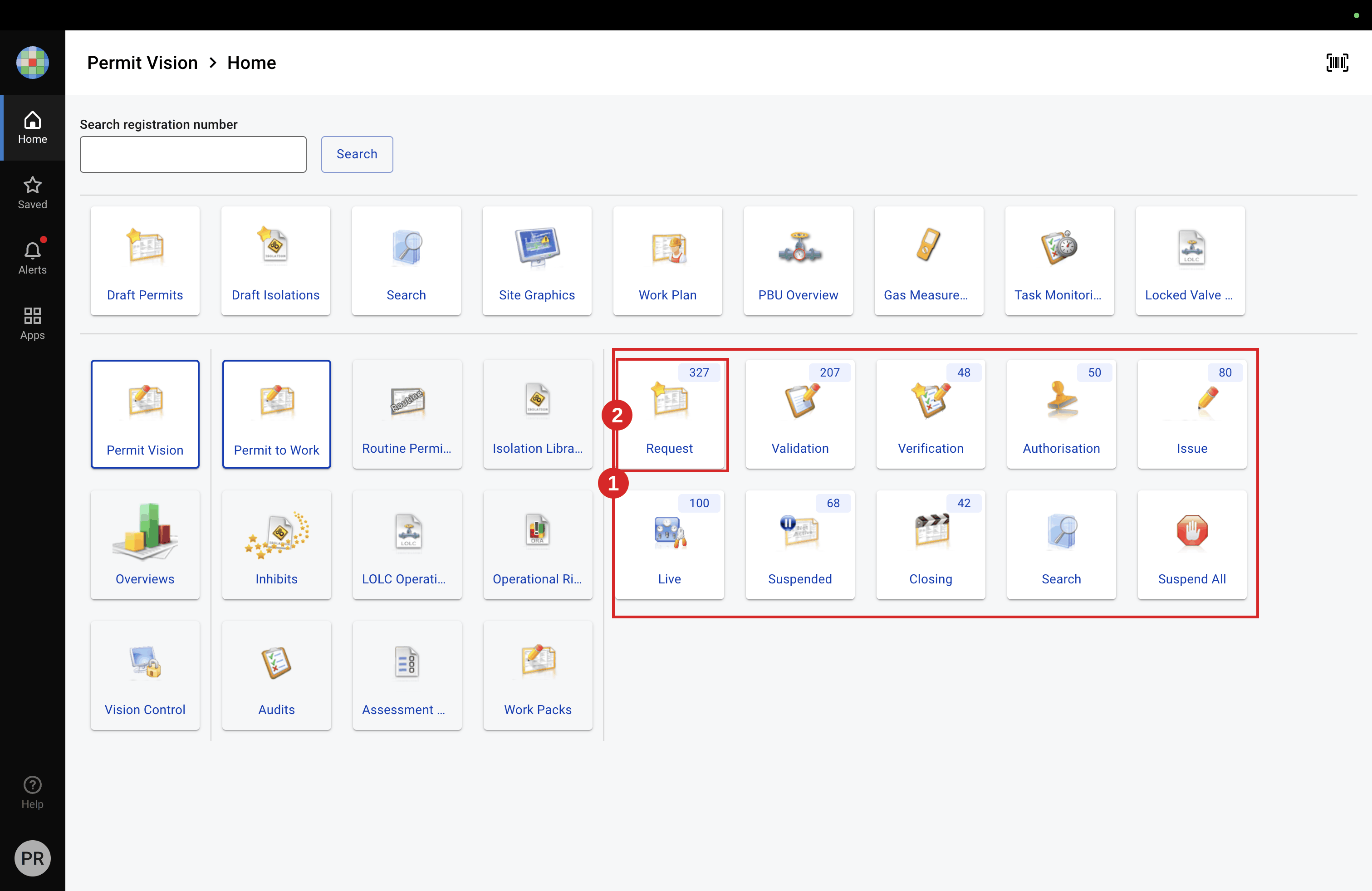
The table below shows the picto of each main-menu tile (the same icon you see in the dashboard and the left menu) and the statuses it contains.
| Picto | Tile (button) | Statuses inside the tile |
|---|---|---|
 |
Request | Request |
 |
Validation | Awaiting Validation |
 |
Verification | Awaiting Verification (SIMOPS), Awaiting Verification |
 |
Authorisation | Awaiting Authorisation |
 |
Issue | Awaiting Issue, Issued, Awaiting Opening, Awaiting Activation |
 |
Live | Live, Live for Test, Overdue |
 |
Suspended | Suspension in progress, Suspended, Suspended for Test, Suspended for Emergency, Re-issued, Re-issued for Test, Awaiting Re-opening, Awaiting Re-opening for Test |
 |
Closing | Closing, Overdue (Awaiting completion), Closed |
 |
Search | Action — searches across all statuses (incl. Closed) |
 |
Suspend All | Action — suspends every Live permit in one step (emergency) |
Tip. This page is pure navigation: it tells you which tile (folder) to open to find a given status. The status shapes and colours themselves are explained on the status legend.
Start a new permit
From the Request tile, click + Permit to Work (bottom right). You can create a permit from scratch (Create a New Permit to Work), from an approved routine (Create a Permit from a Routine Permit) or through a guided questionnaire (Create a Permit from a Questionnaire). You can also copy an existing permit (Copy an Existing Permit); a work pack permit is created from the Work Pack module (Create a Permit from a Work Pack).