Authorise a Permit
Status:  Awaiting Authorisation →
  Awaiting Issue
Authorise a verified permit so it can be issued, after setting its priority.
When to use
Use this task when a permit is in Awaiting Authorisation and you hold the RSES role.
Before you start — check before launching the task
- You hold the RSES role (typical position: RSES / RSES-D / RSES-S).
- You did not verify this same permit as Operating Authority — a person cannot both verify and authorise the same permit (separation of duties).
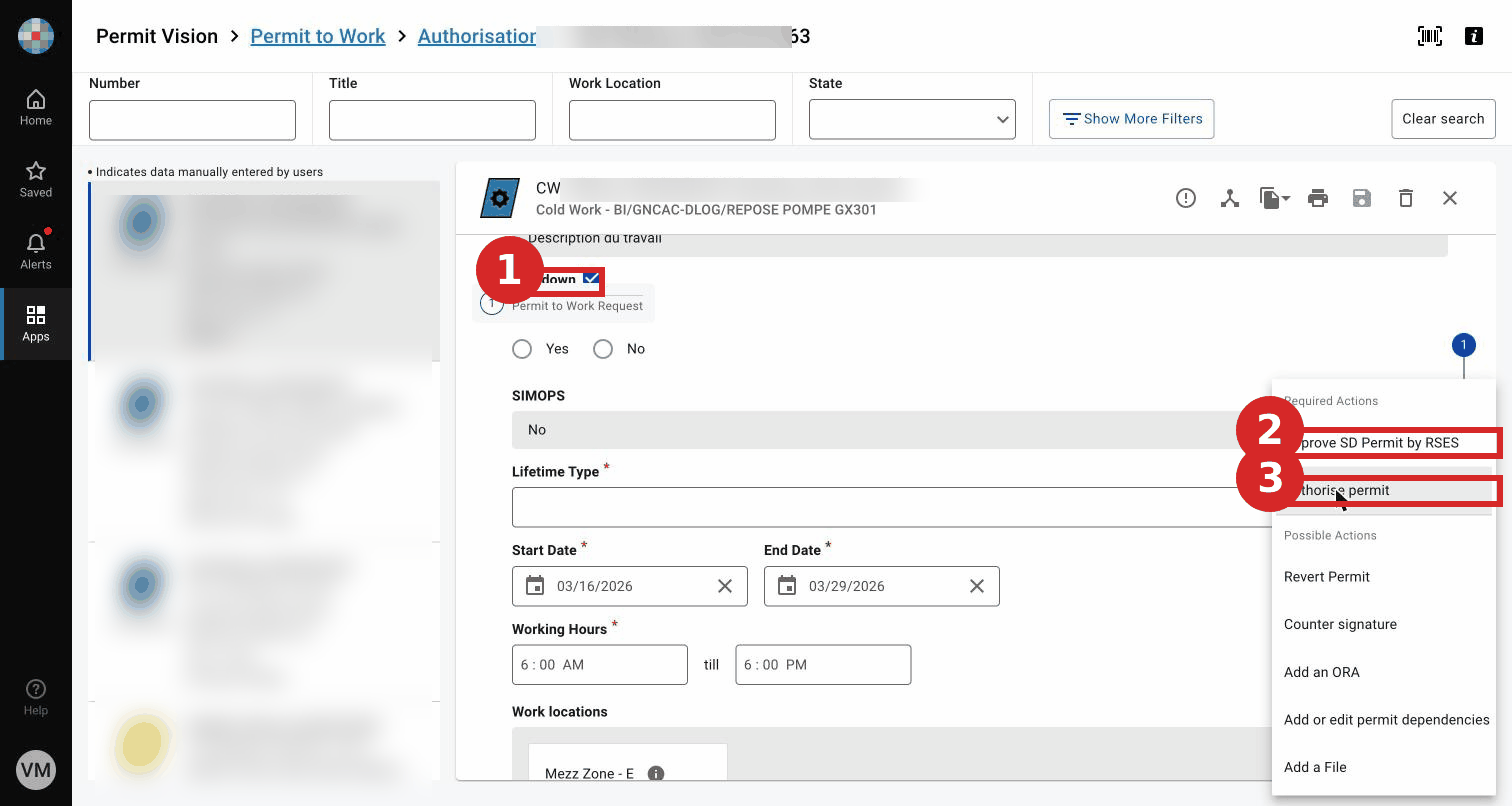
- For a Shutdown permit, be ready to also approve the SD permit.
Step-by-step
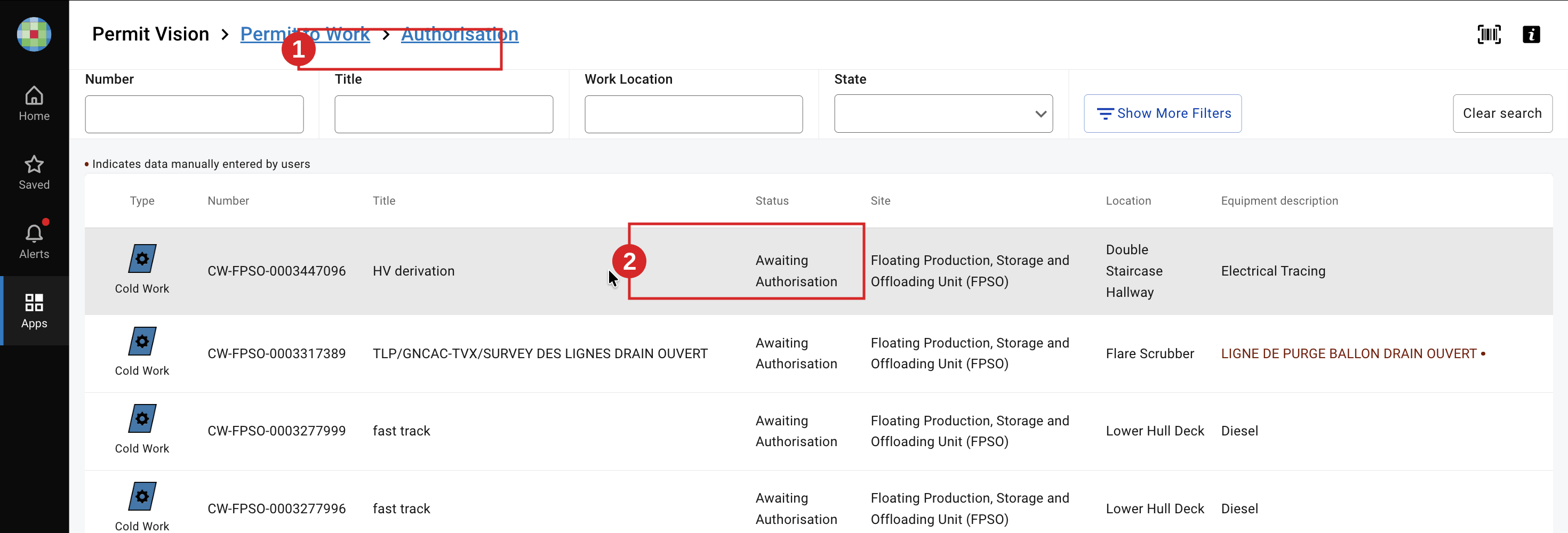
- Open the Permit to Work list filtered on Authorisation and select a permit in Awaiting Authorisation.
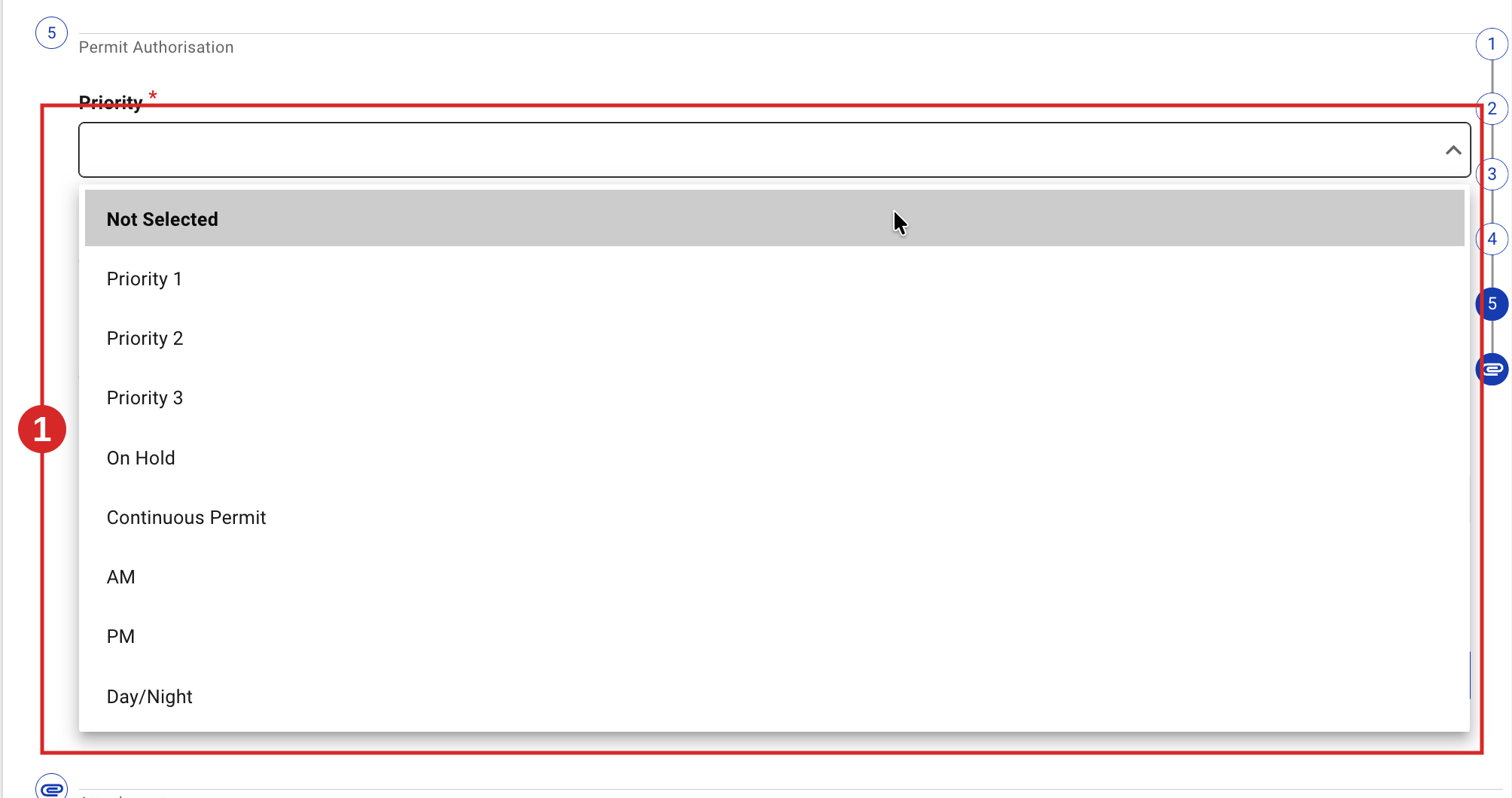
- Review the permit, then set the Priority field — it is mandatory (Priority 1/2/3, On Hold, Continuous Permit, AM, PM, Day/Night).
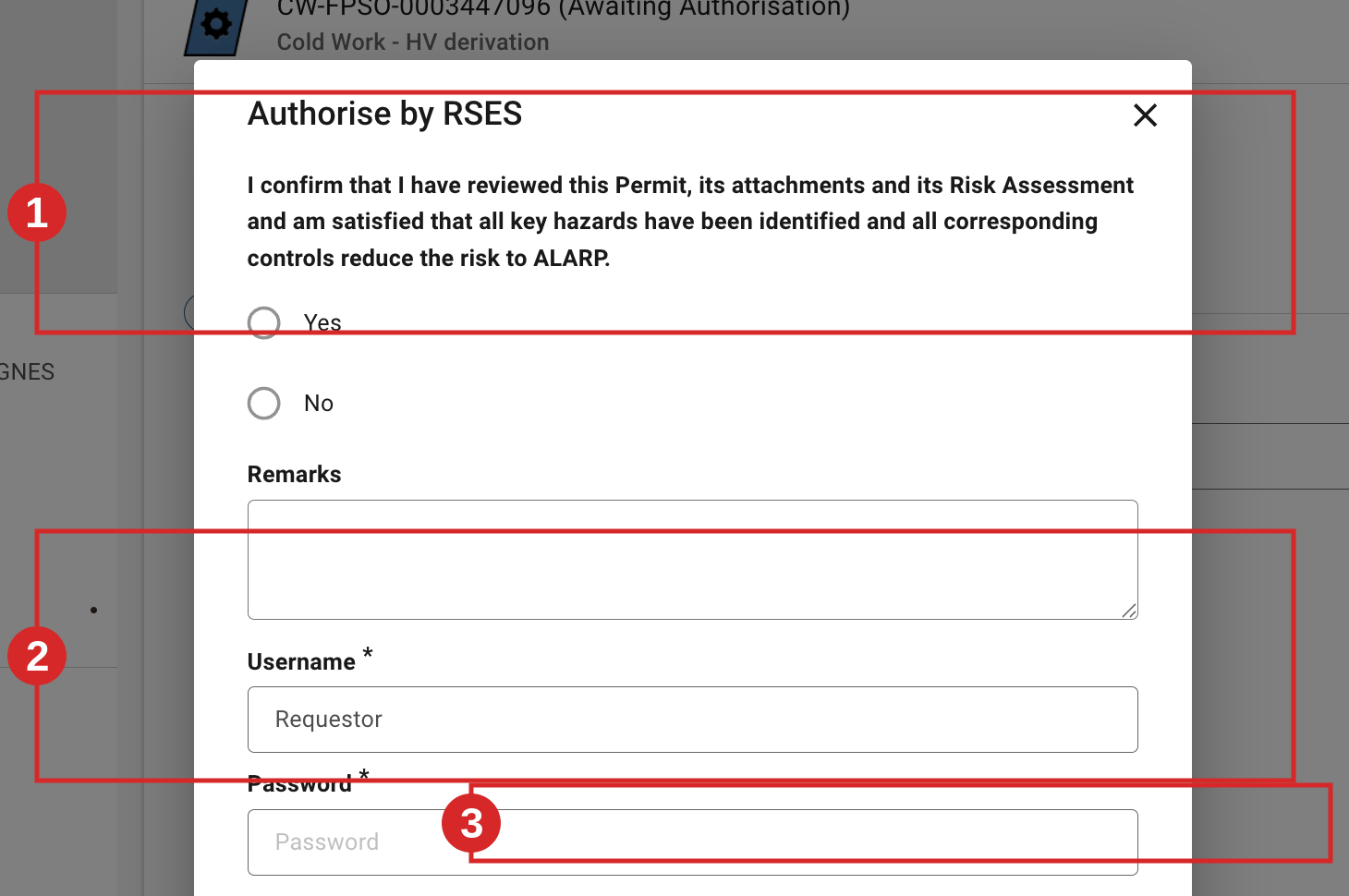
- In Required signatures, click Sign on Authorise by RSES, confirm the ALARP self-declaration, then confirm with Sign as logged in or your username and password. On a Shutdown permit, the Actions menu also lists Approve SD Permit by RSES in addition to Authorise permit — both are required (confirmed in UAT). For a permit created from a Routine, the signature differs: Authorise Routine Permit by Operating Authority or RSES (see Create a Permit from a Routine Permit).
Expected result
The permit moves from Awaiting Authorisation to Awaiting Issue and appears in the issue worklist. 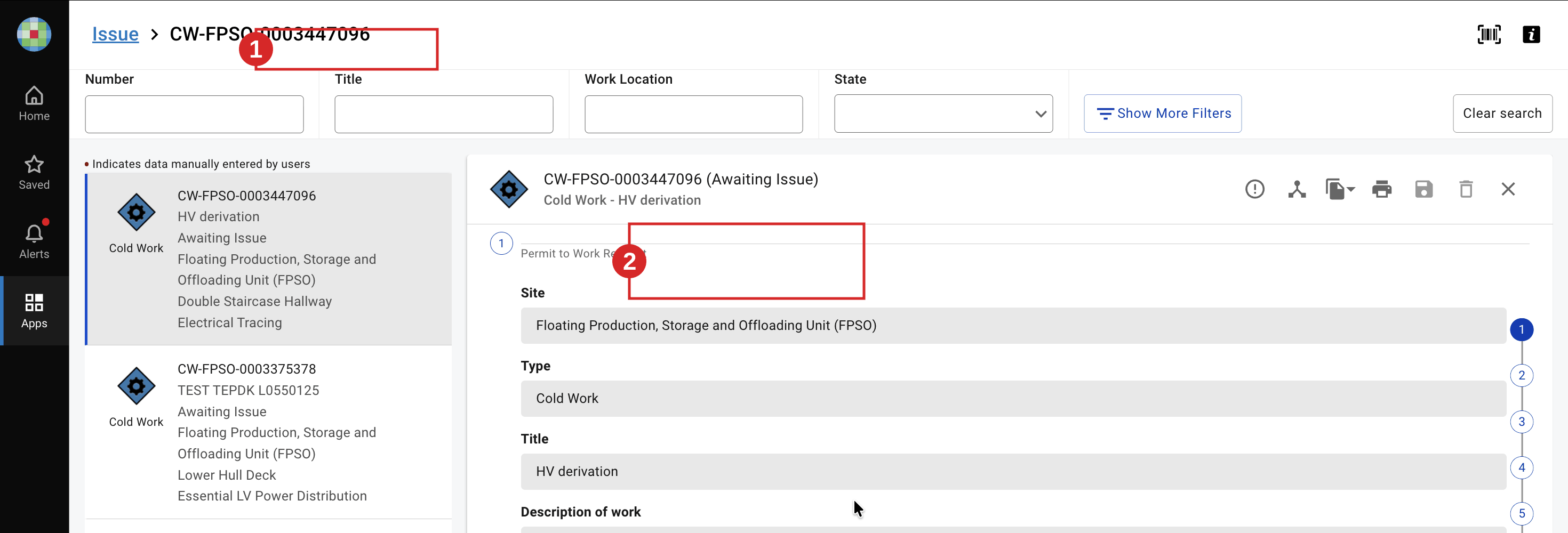 The next task is Issue a Permit.
Key Referentiel rules
- A person cannot approve or issue a permit to work for themselves, and the same person should not both verify and authorise the same permit. (CR-GR-HSE-402, executive summary)
- Authorisation confirms the risk is reduced to ALARP, based on the reviewed permit, attachments and risk assessment. (E-Permit V9 self-declaration)
- Permit lifetime and type rules apply — Extended Lifetime is only valid for Shutdown permits. (FDD V9)
Tips & pitfalls
Tip — Priority first. The permit cannot be authorised until Priority is set.
Pitfall — skipping the SD approval. On a Shutdown permit, authorisation is incomplete without the Approve SD Permit by RSES signature.
Tip — Link Certificate: attaching is not signing. Attaching a certificate (ICC, inhibition, complementary) to the permit and signing it onto the permit are two different steps, with two different minimum statuses. A certificate must be far enough through its own workflow before it can be signed onto the permit. The app blocks the signature and names the certificate, but does not tell you the status it needs.
TO BE CONFIRMED — exact minimum statuses for attach vs sign (for example, an ICC reaching its Authorisation step before it can be signed onto the permit). Source needed: ICC / INH module confirmation in UAT (PTW↔ICC coupling).
Common mistakes
| Mistake | Consequence |
|---|---|
| Authorising a permit you verified as OA | Breaks separation of duties; non-compliant |
| Leaving Priority unset | Signature blocked; permit cannot progress |
| Forgetting SD approval on a Shutdown permit | Authorisation incomplete; issue blocked |